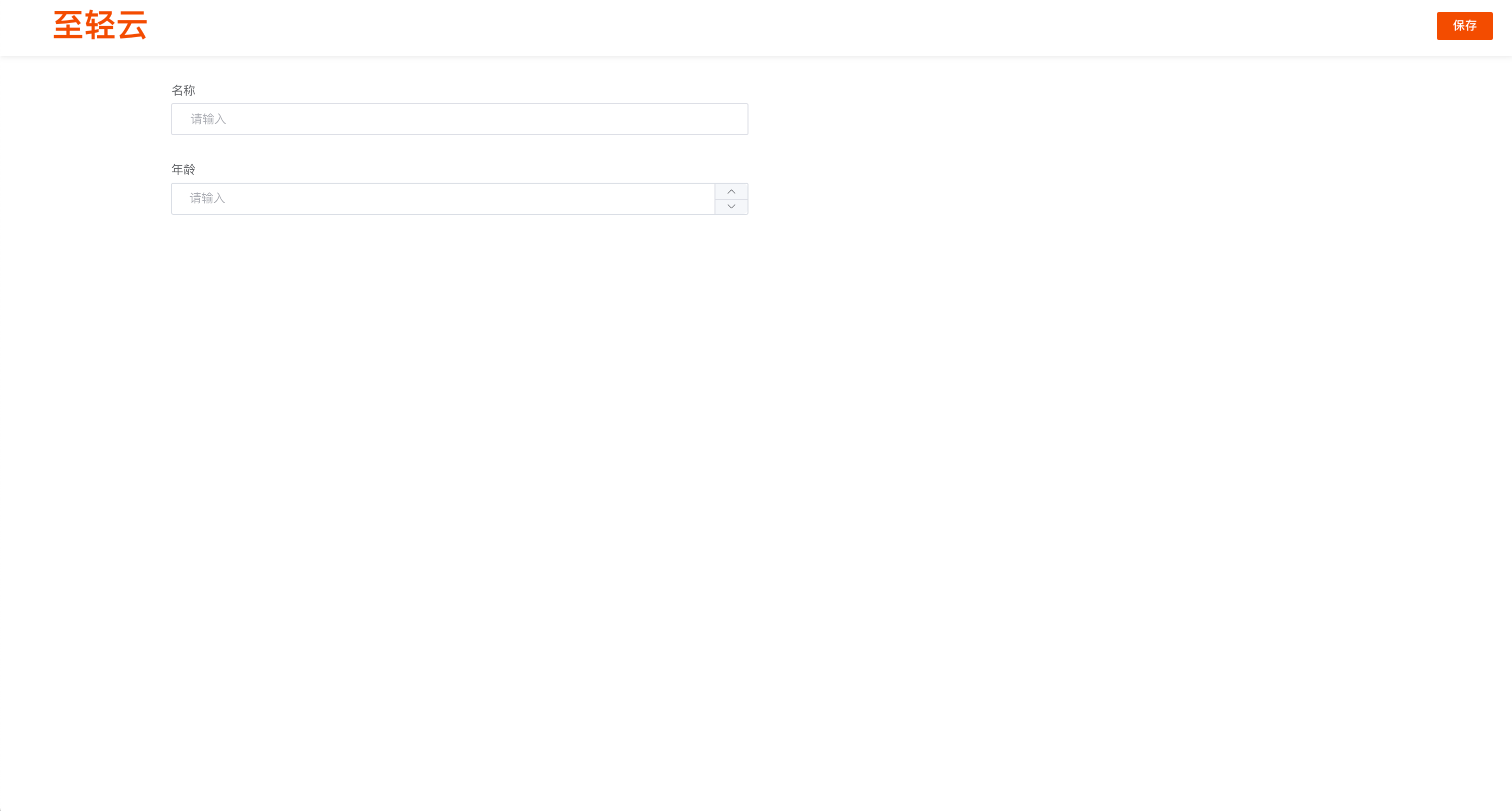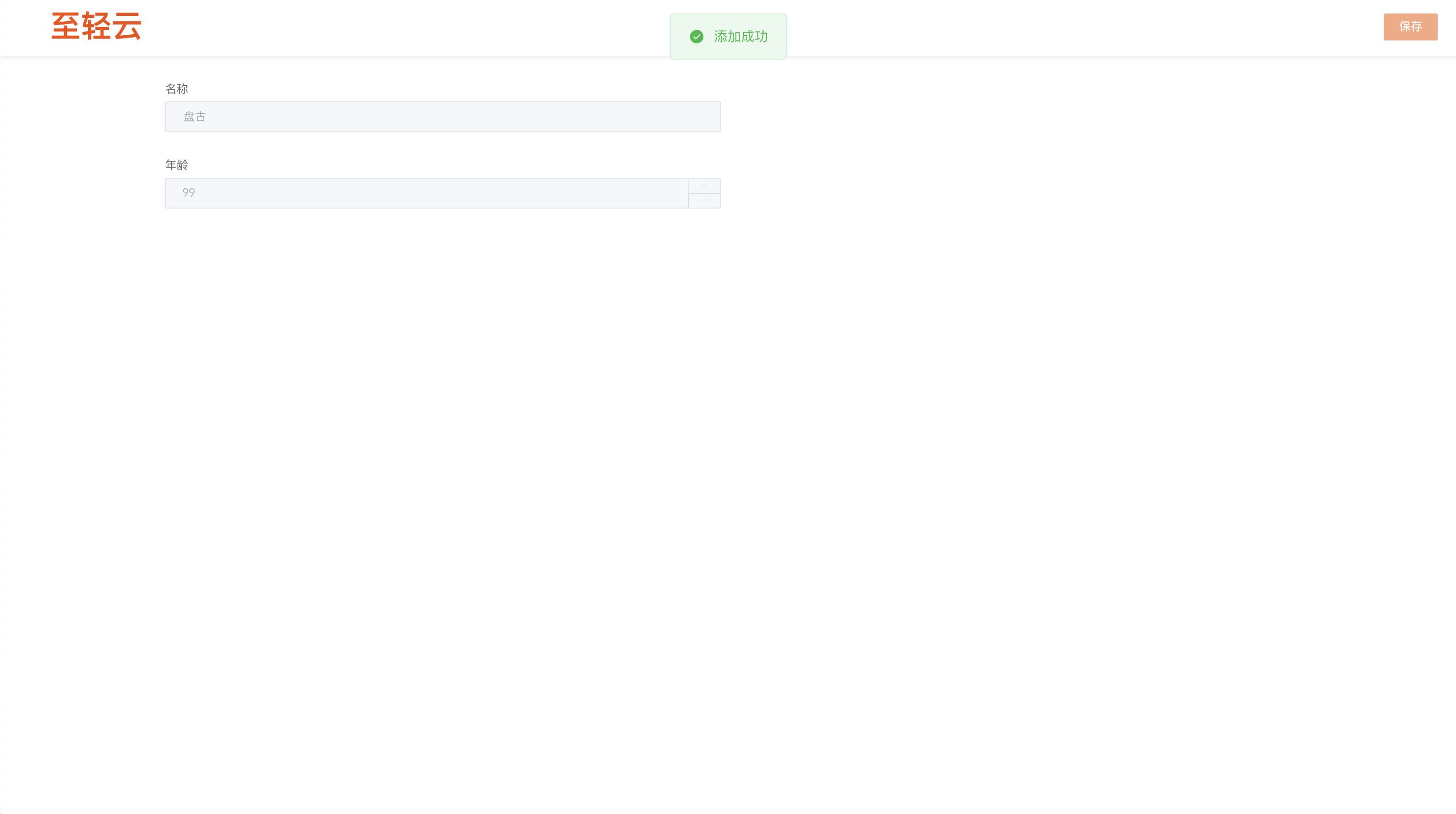
Share form module
This article explains the usage scenarios, operation procedures and configuration items of the sharing form function to help users standardize platform operations.
Visually enter table data by dragging and dropping components
query form
Query form list Support form name search
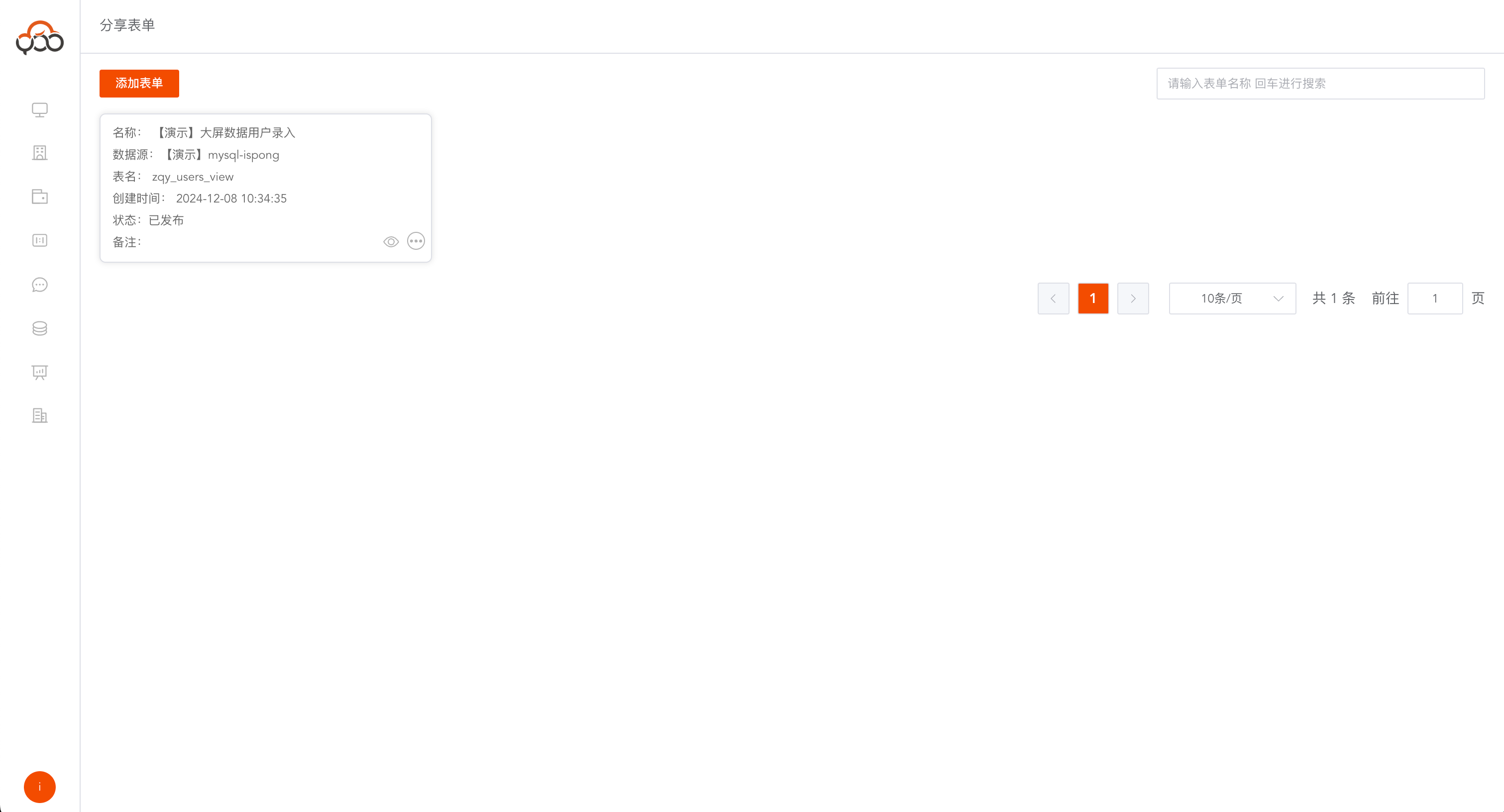
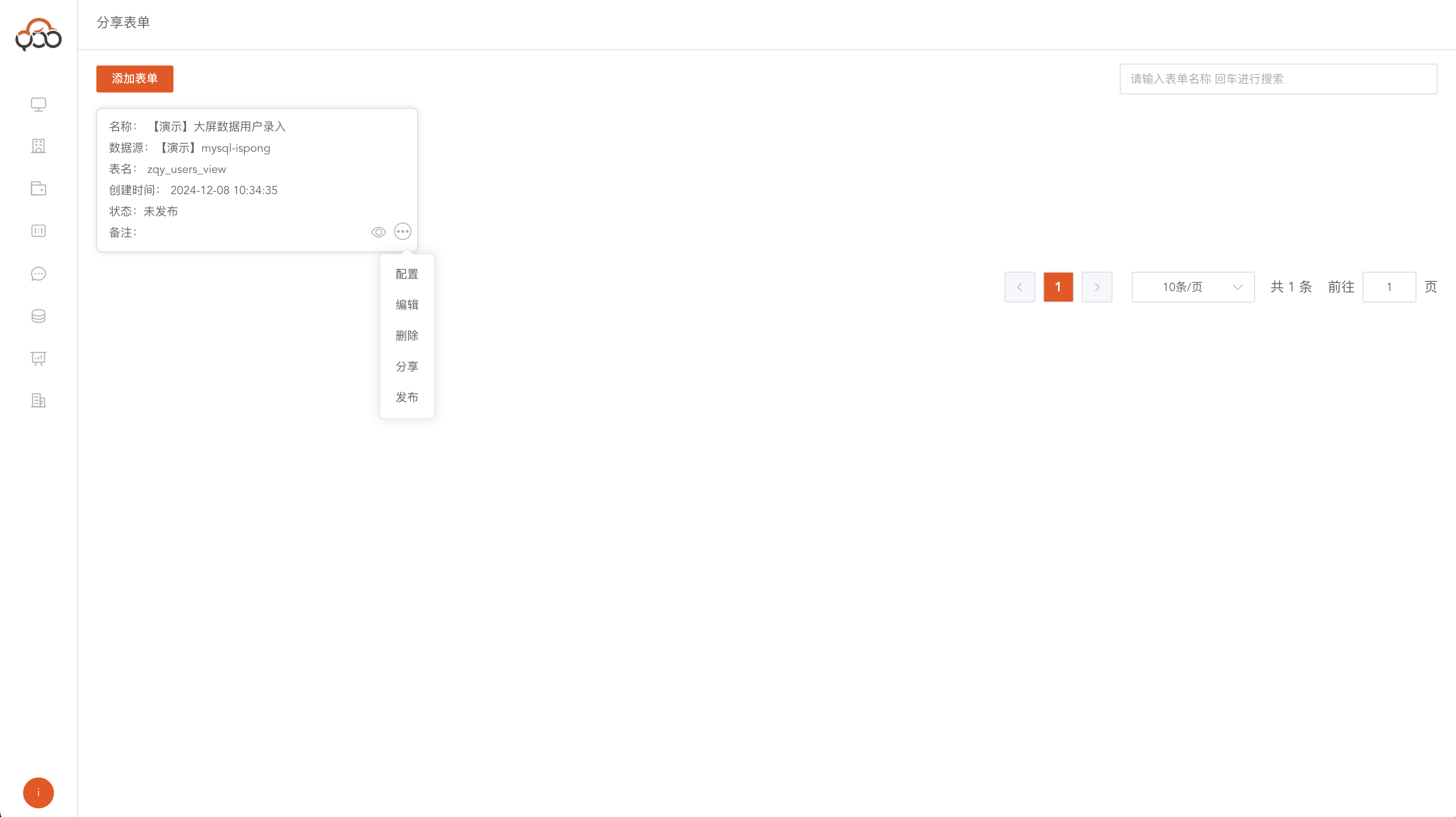
Form operations, including configuration, editing, deletion, sharing, publishing, posting, and offline
Create new form
Click the
Add Formbutton
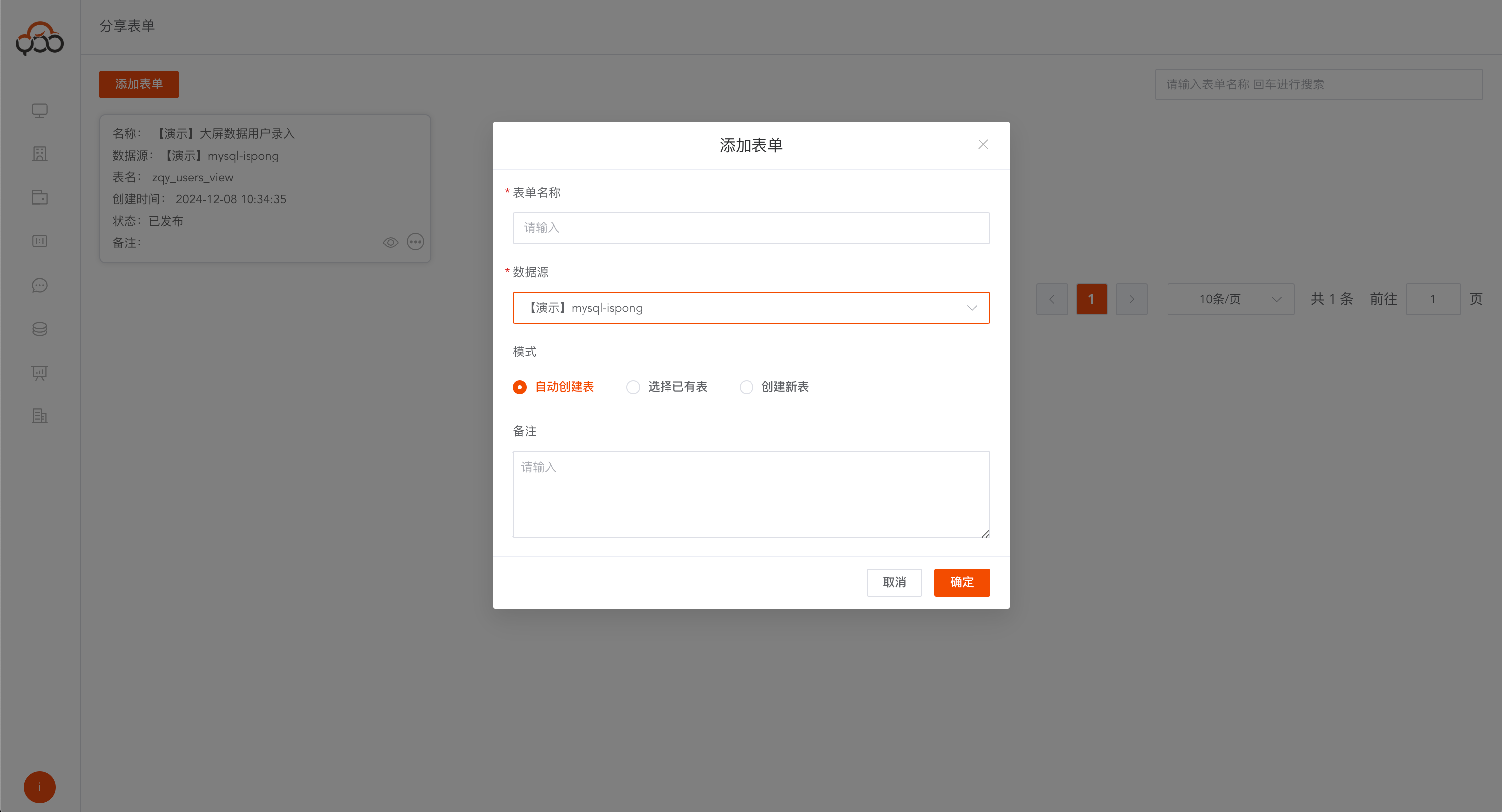
- Form Name: The name of the form
- Data source: Specify the data source that needs to operate the data
- Mode: Supports three modes
Automatically create table: Create a new table starting withSY_in the specified data source by defaultSelect existing table: drop down and select a table that already exists in the data sourceCreate new table: Enter the name of the table to be created. It will be automatically created in the database by default. - Remarks: Optional
Configuration form
Click the
Configurebutton
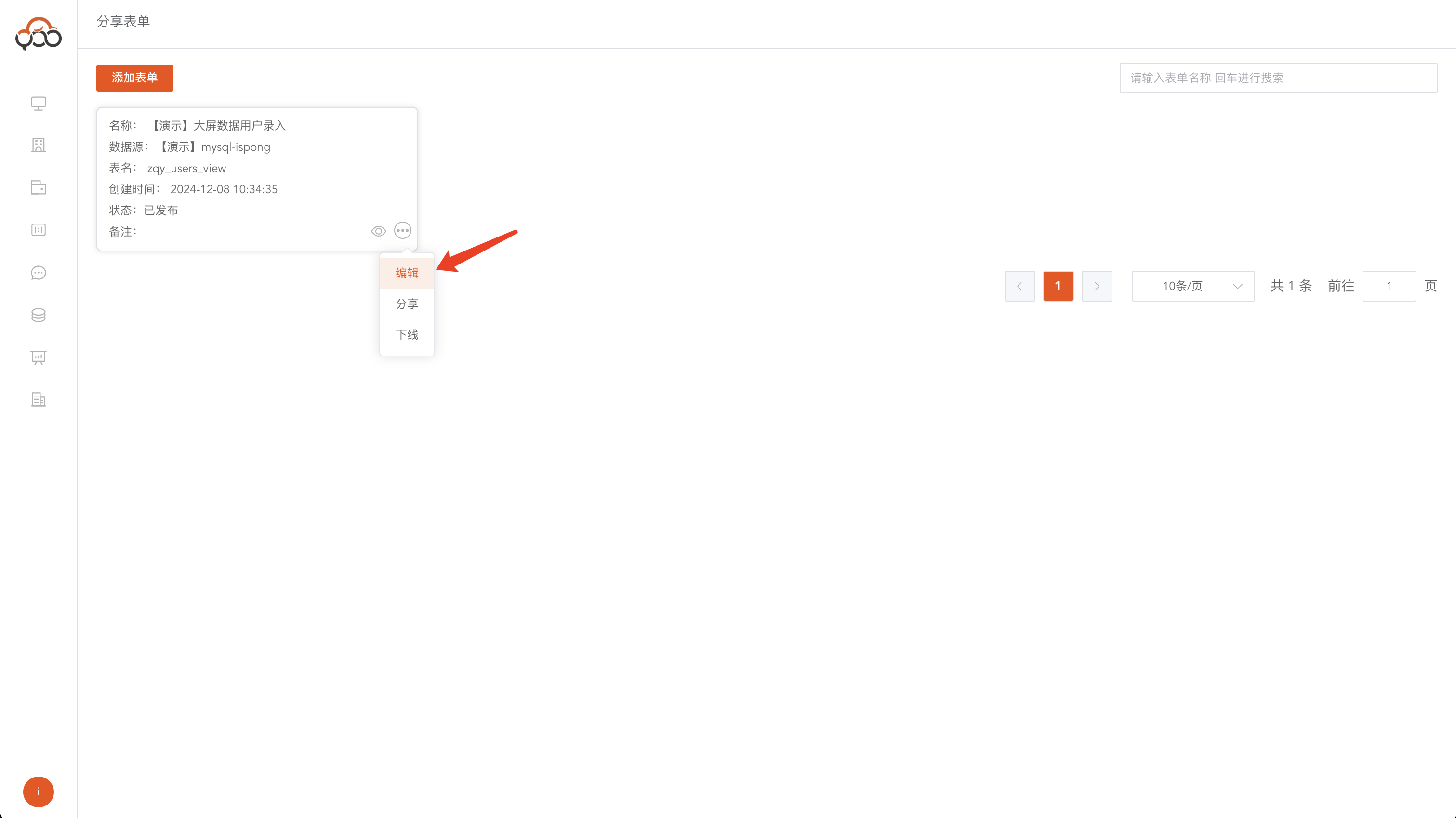
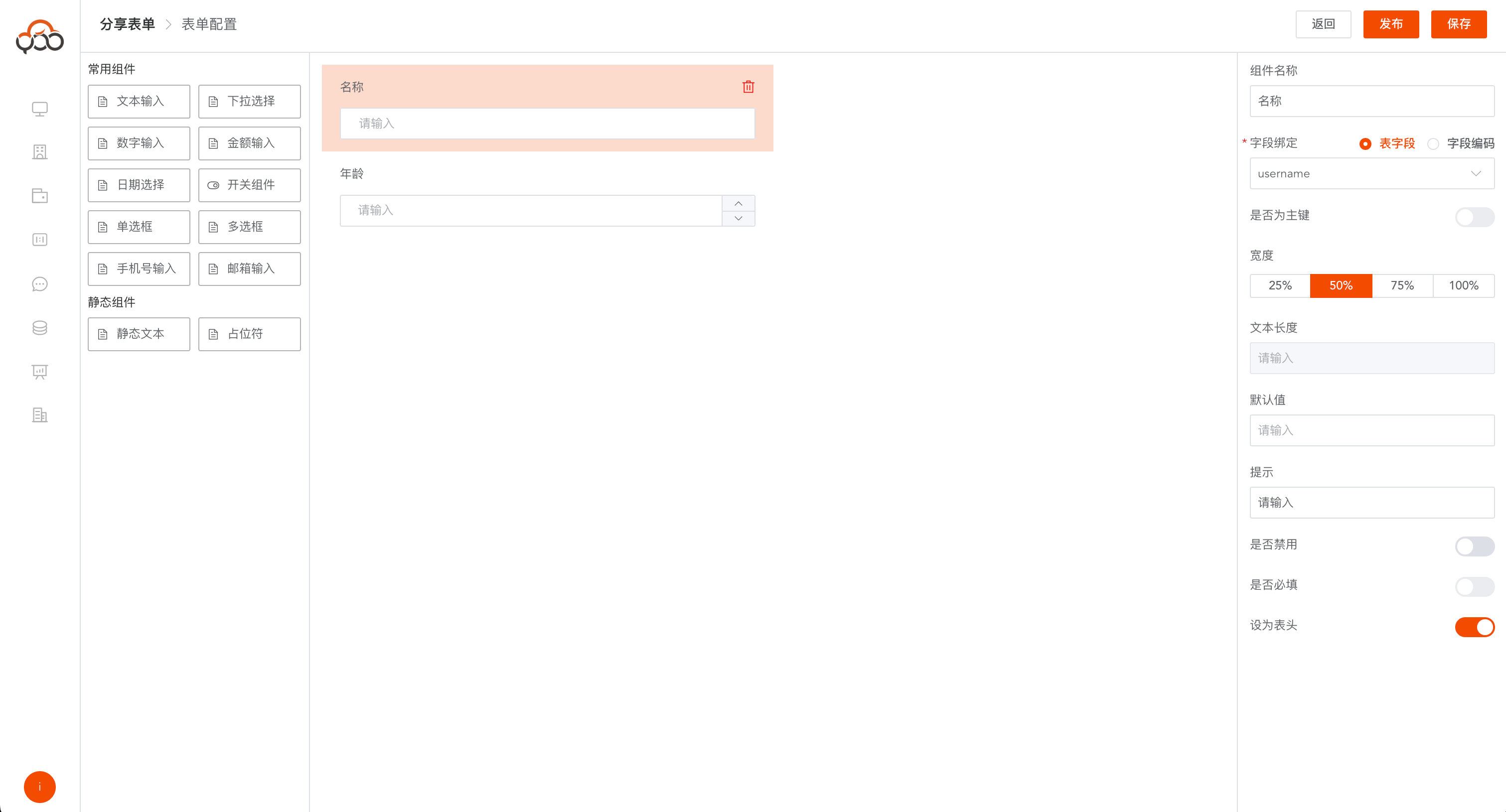
Drag the components on the left to the canvas The component supports binding specific fields and can also bind new fields.
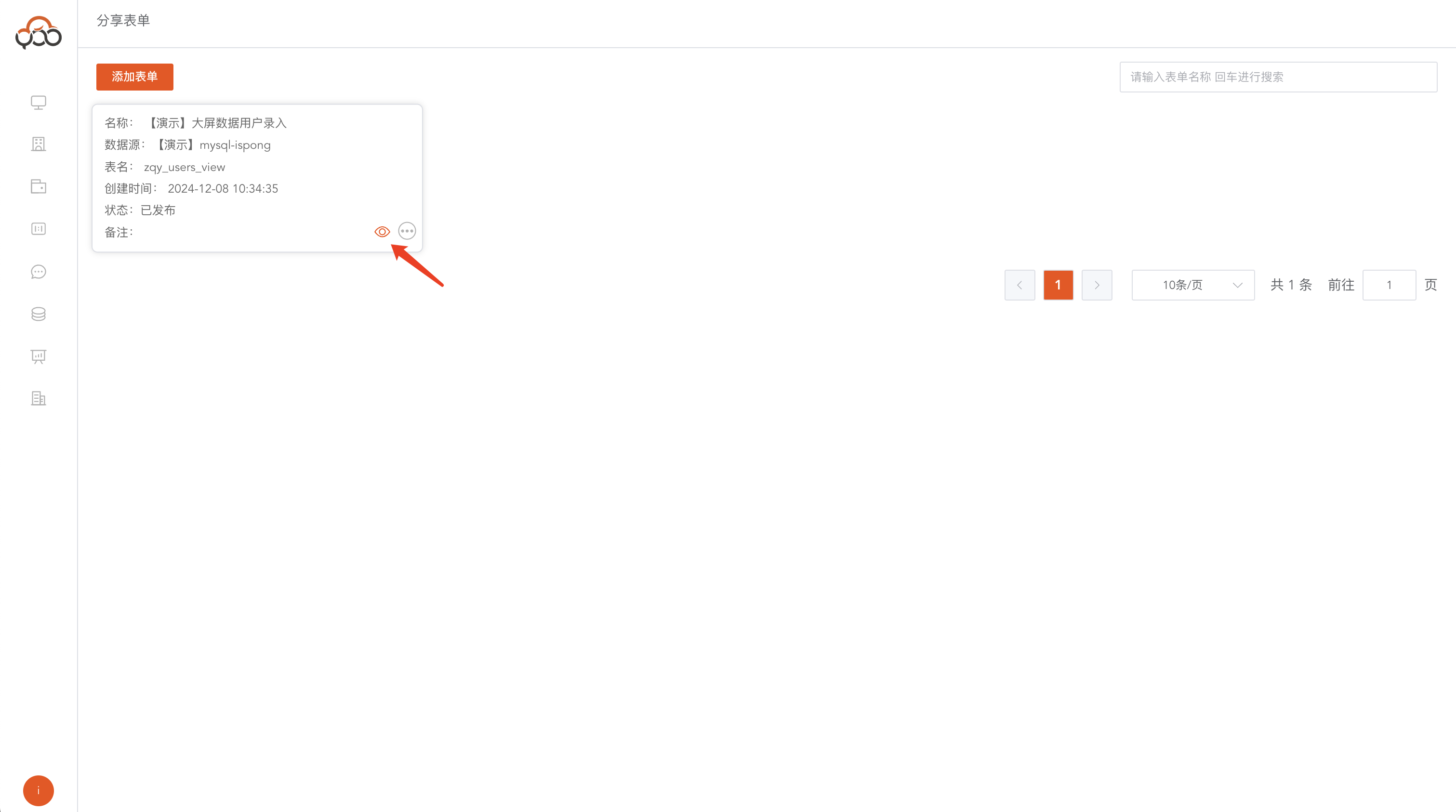
View data
Click on the eye to view existing data in the current form
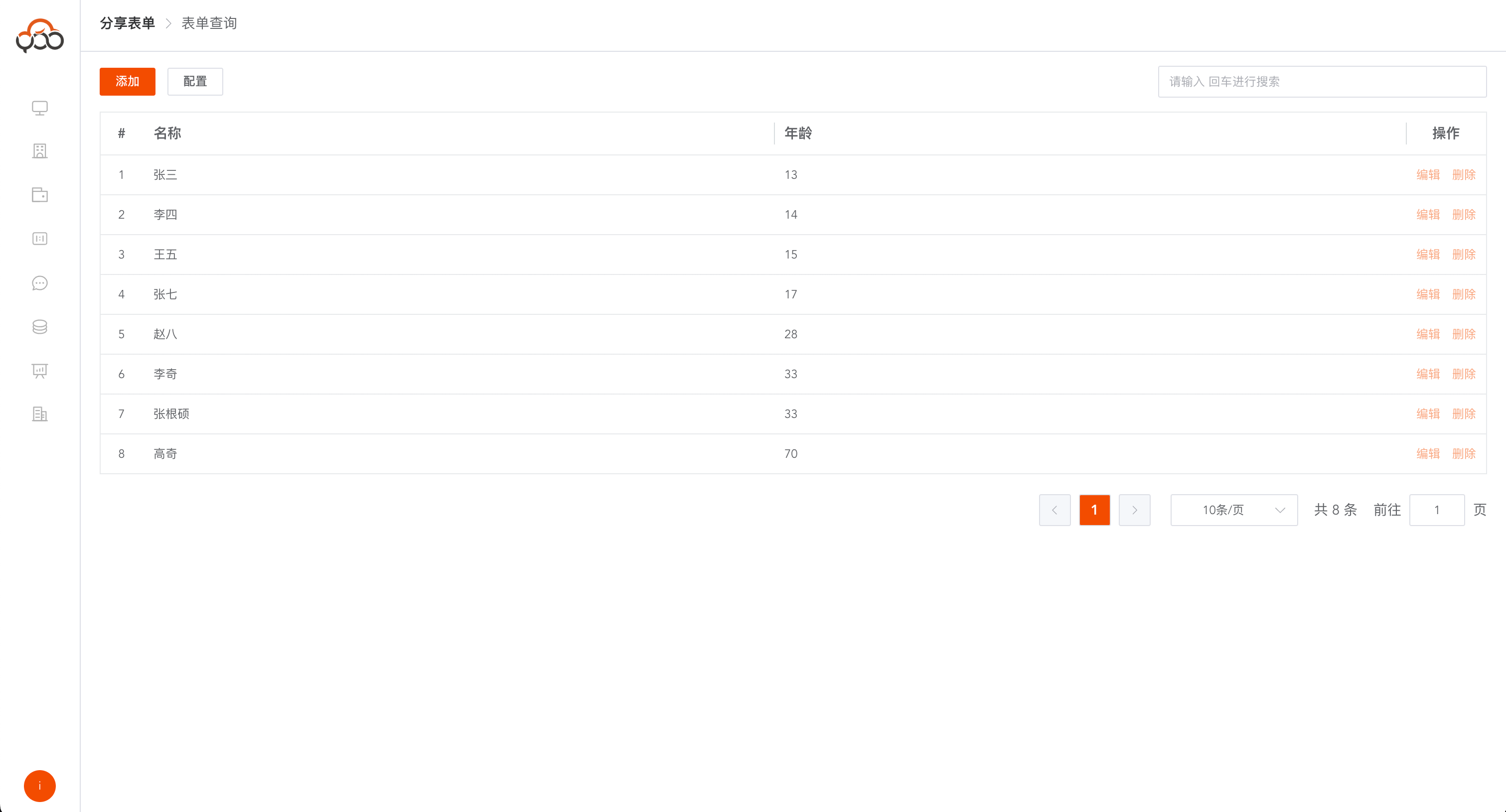
Add, delete, modify and check data
Click the
Addbutton to add a new piece of data
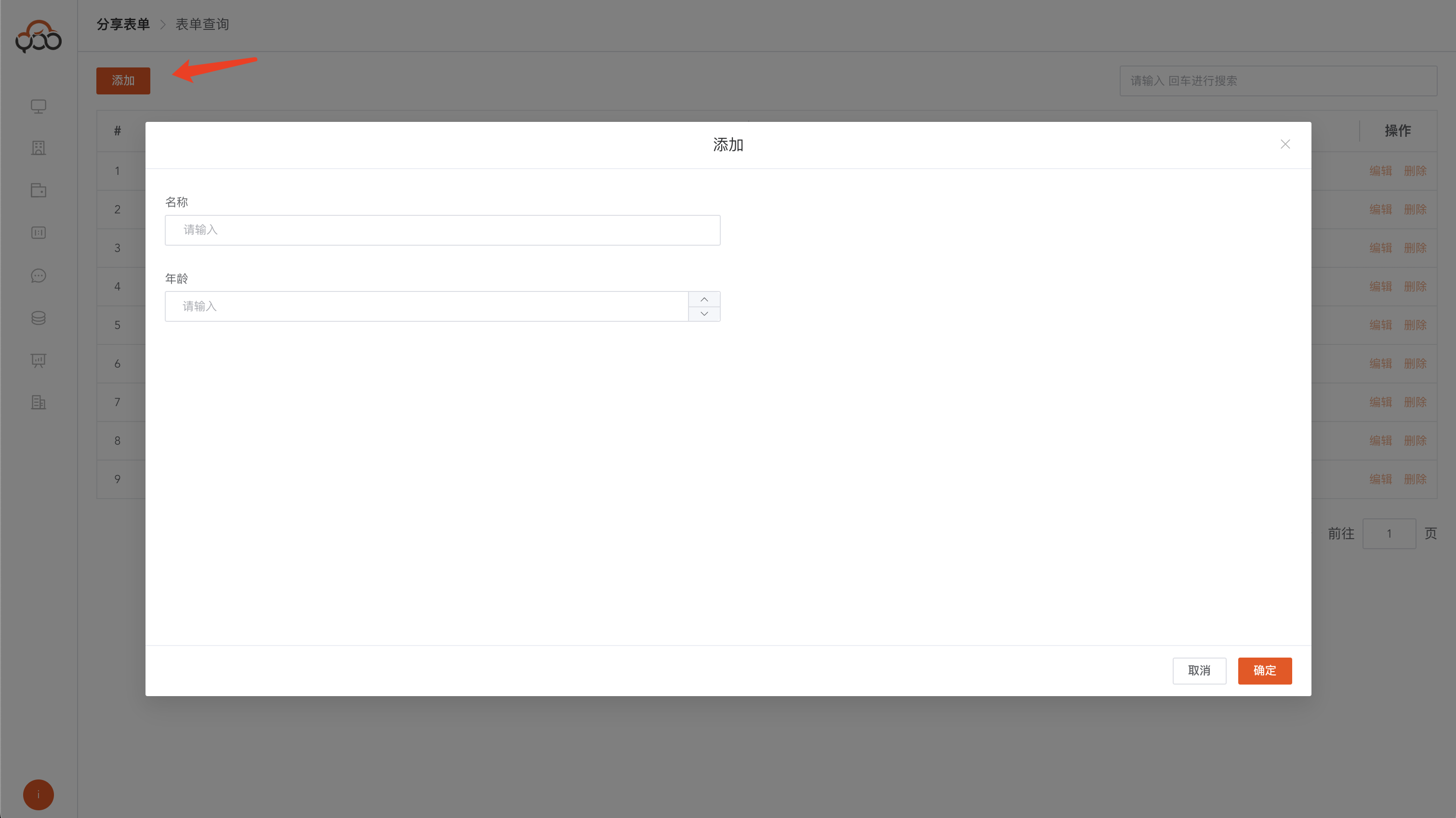
Click the
Editbutton to modify a piece of data
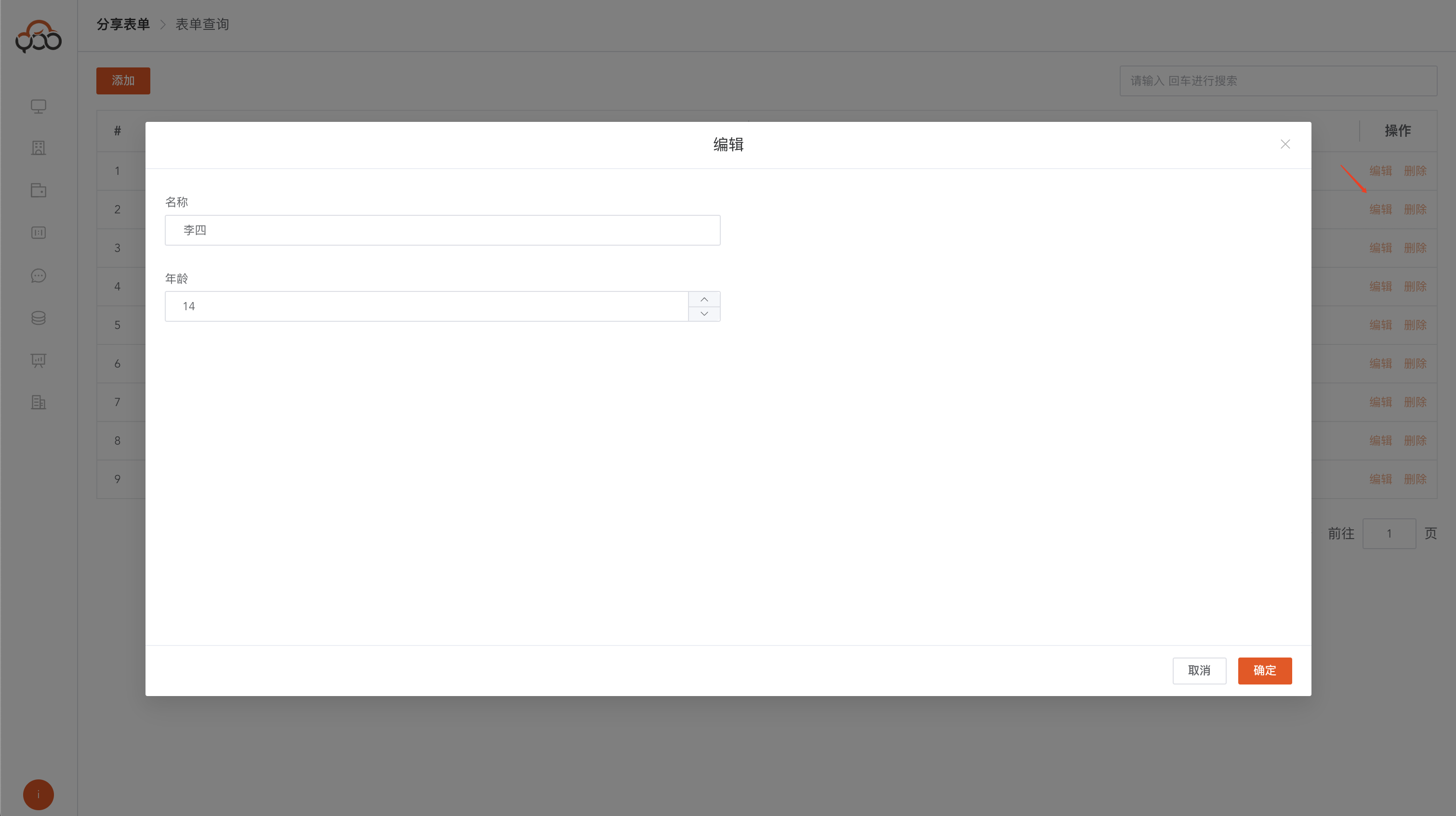
Click the
Deletebutton to delete a piece of data
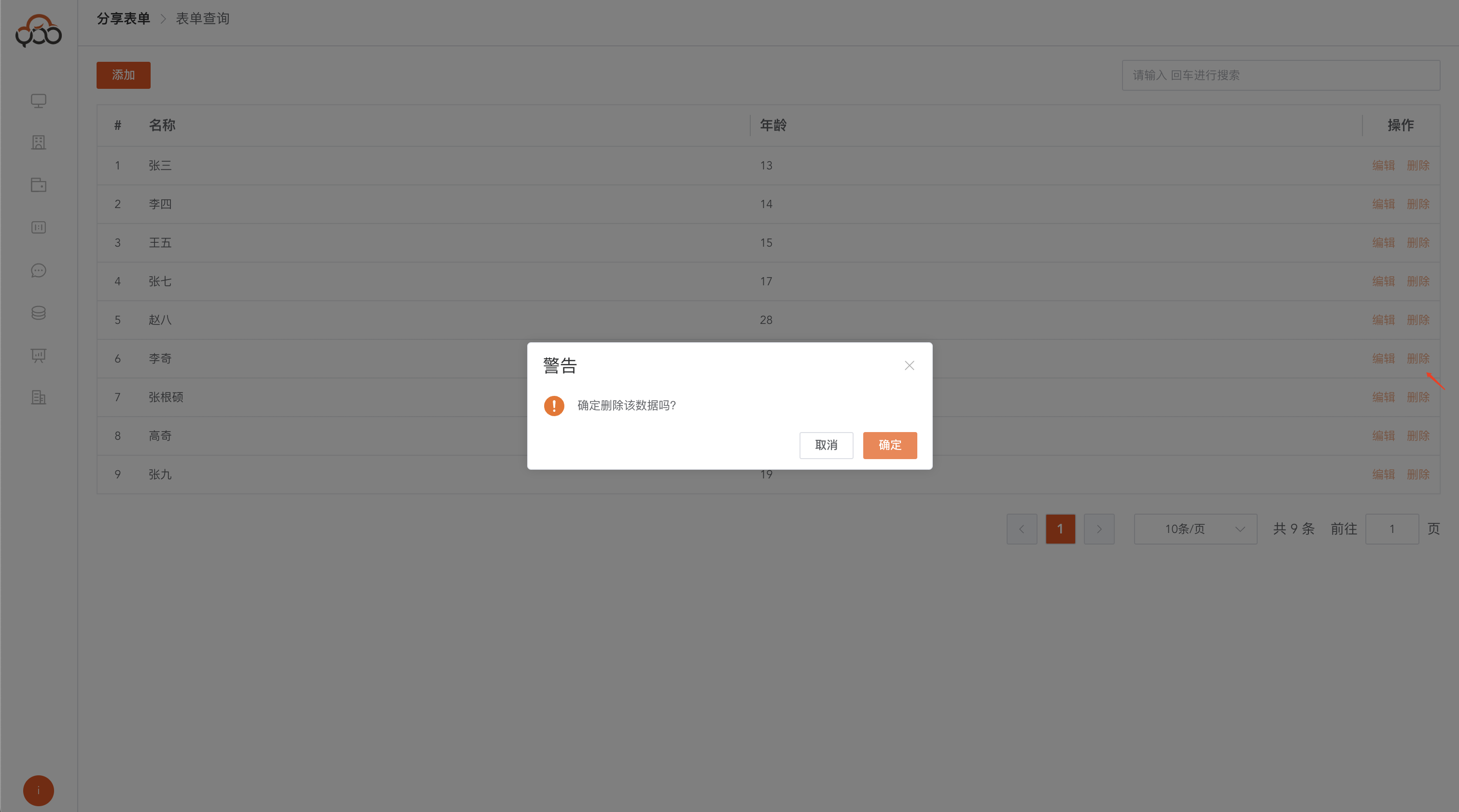
share form
First publish the form and click the
Sharebutton
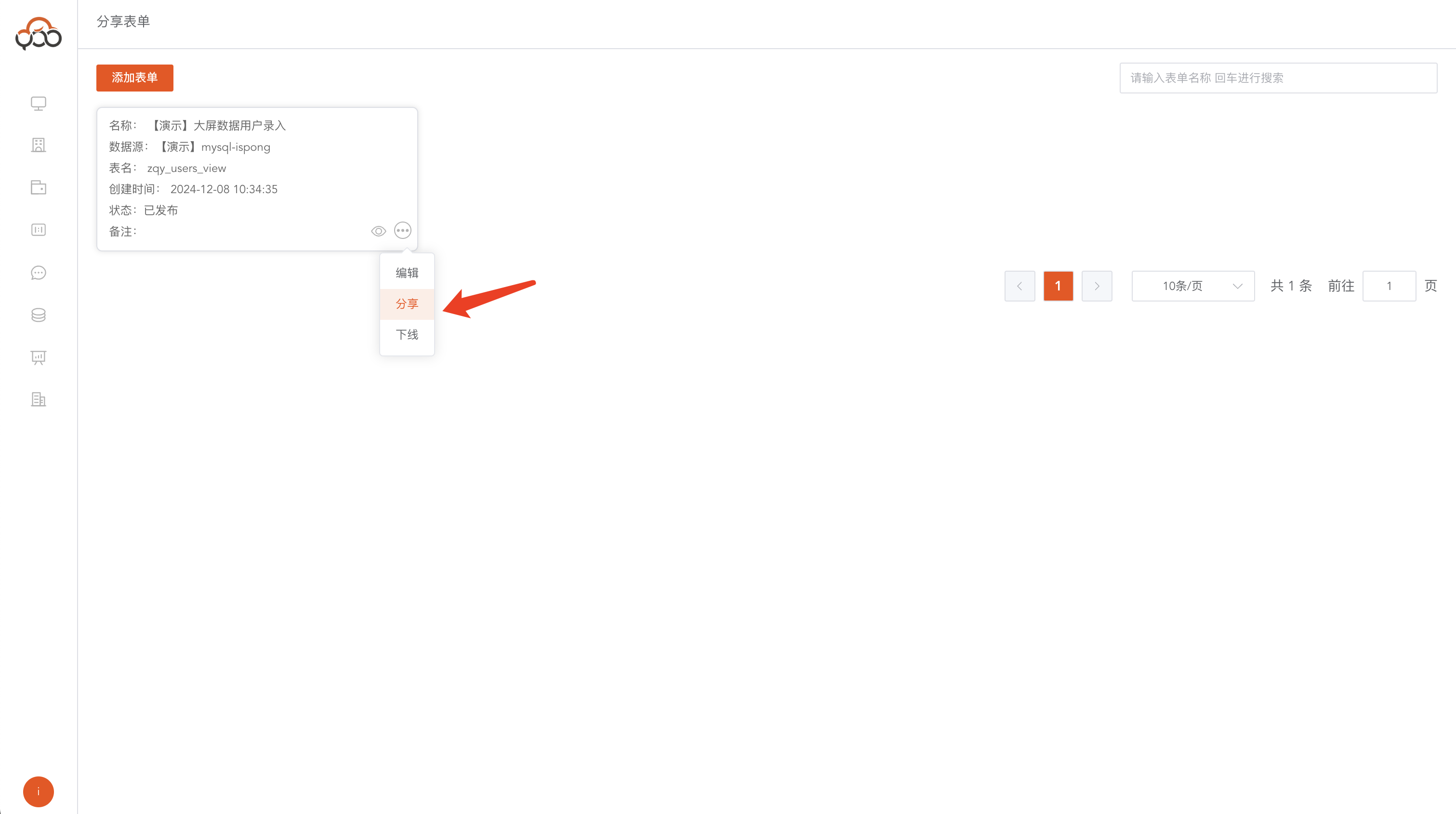
Specify the effective time, the unit is days, the default is 1 day
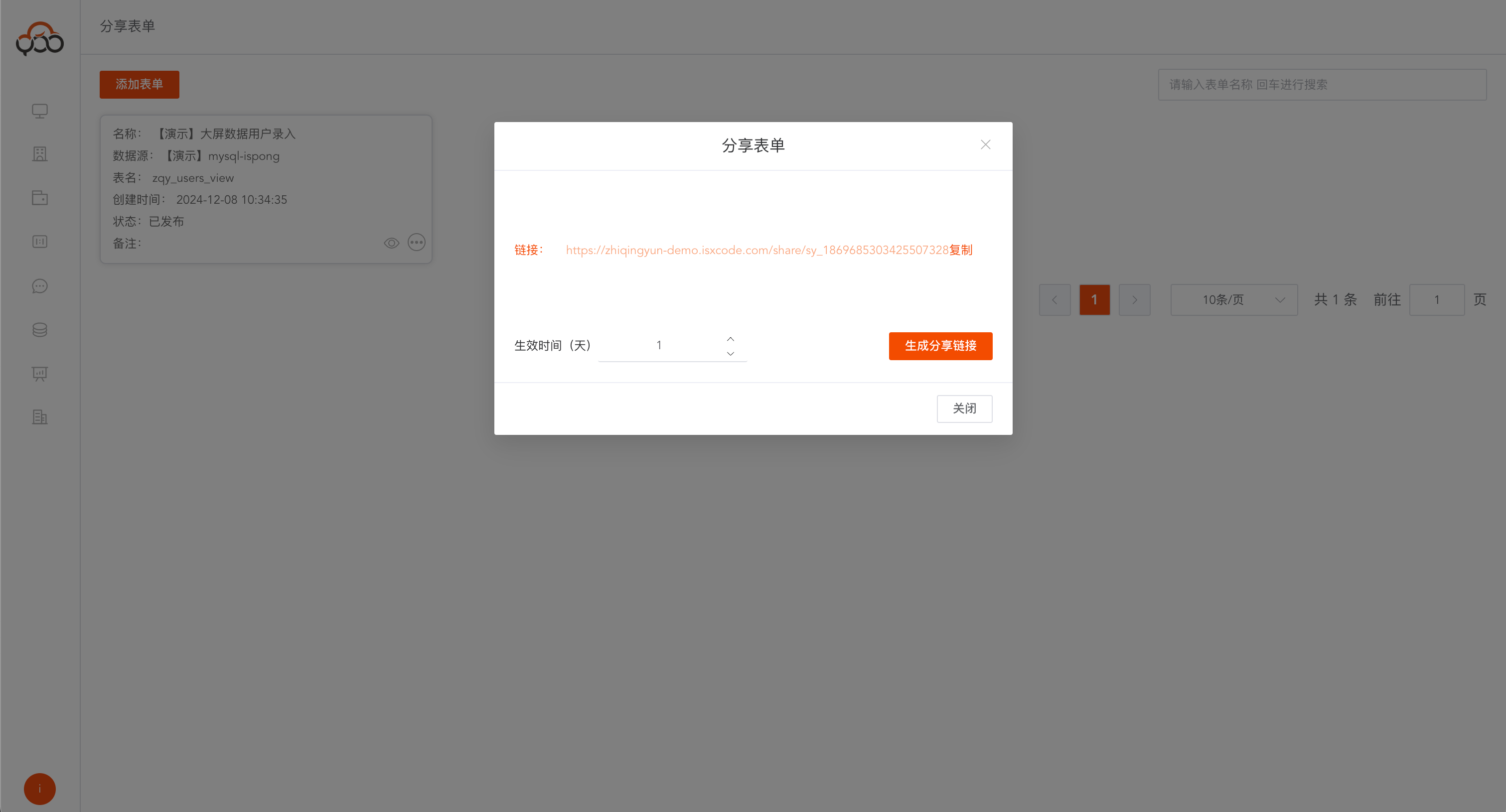
Generate a sharing link and copy it for access, and jump to the user submission data interface