
job flow
This article introduces the usage scenarios, operation processes and key configurations of the job flow function to help users complete daily management and business operations.
Query job flow
Click the
Job Streamsmenu to view the list of job streams in the tenant Support job flow name and remark search
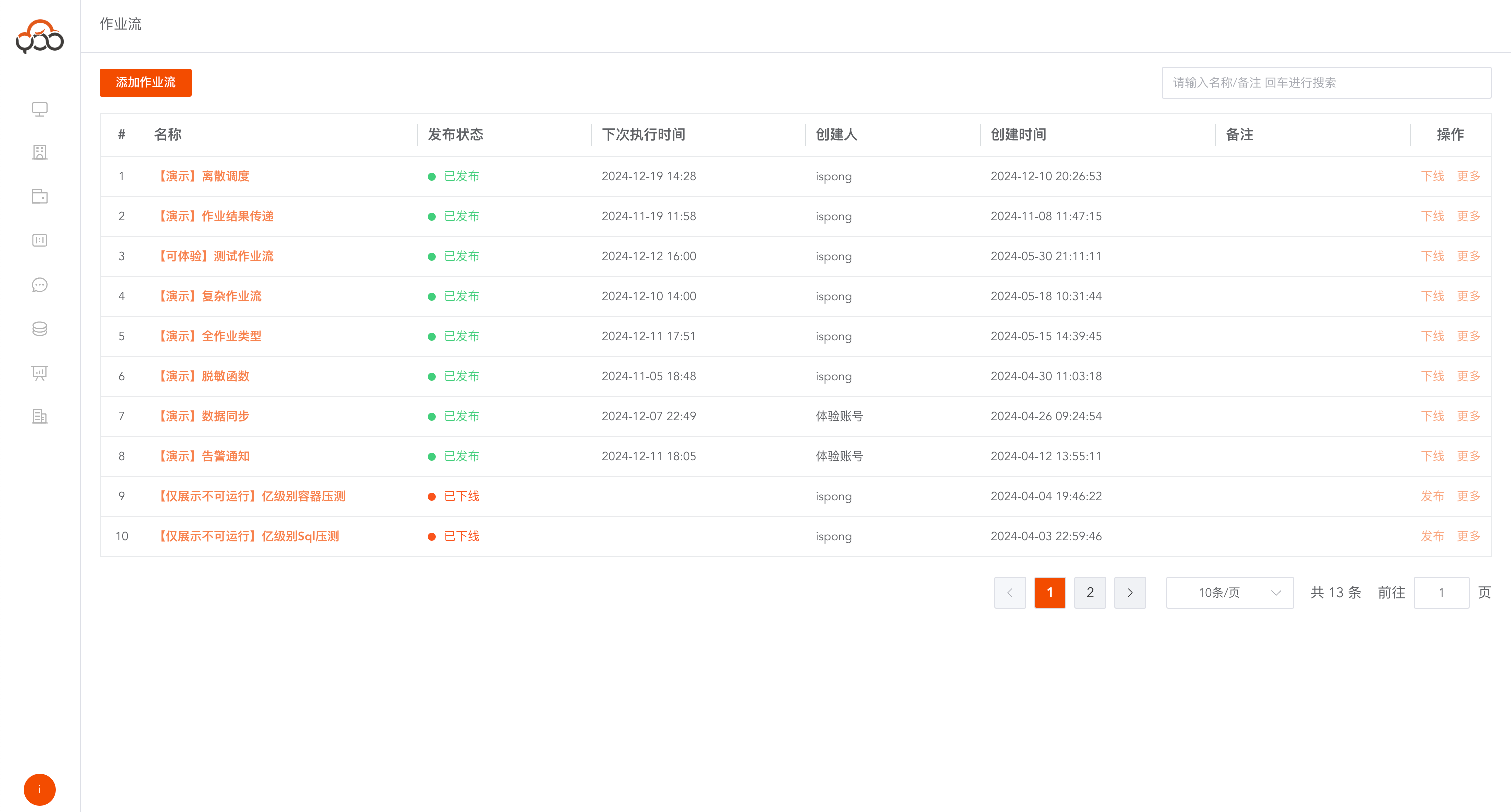
Job flow supports
publish,offline,delete,editoperations
- Publish: The job flow can configure the scheduling time, and the publishing operation can realize the scheduled scheduling of the job flow and refresh the next execution time at the same time.
- Offline: Stop the job flow being scheduled.
- Delete: Delete the job flow, including the jobs and job configurations in the job flow
- Edit: Edit the name and comments of the job stream
Create a new workflow
Click the
Add Job Streambutton to add a new job stream Note: The number of job streams is limited by the number of job streams in the license and the current number of job streams configured in the tenant.
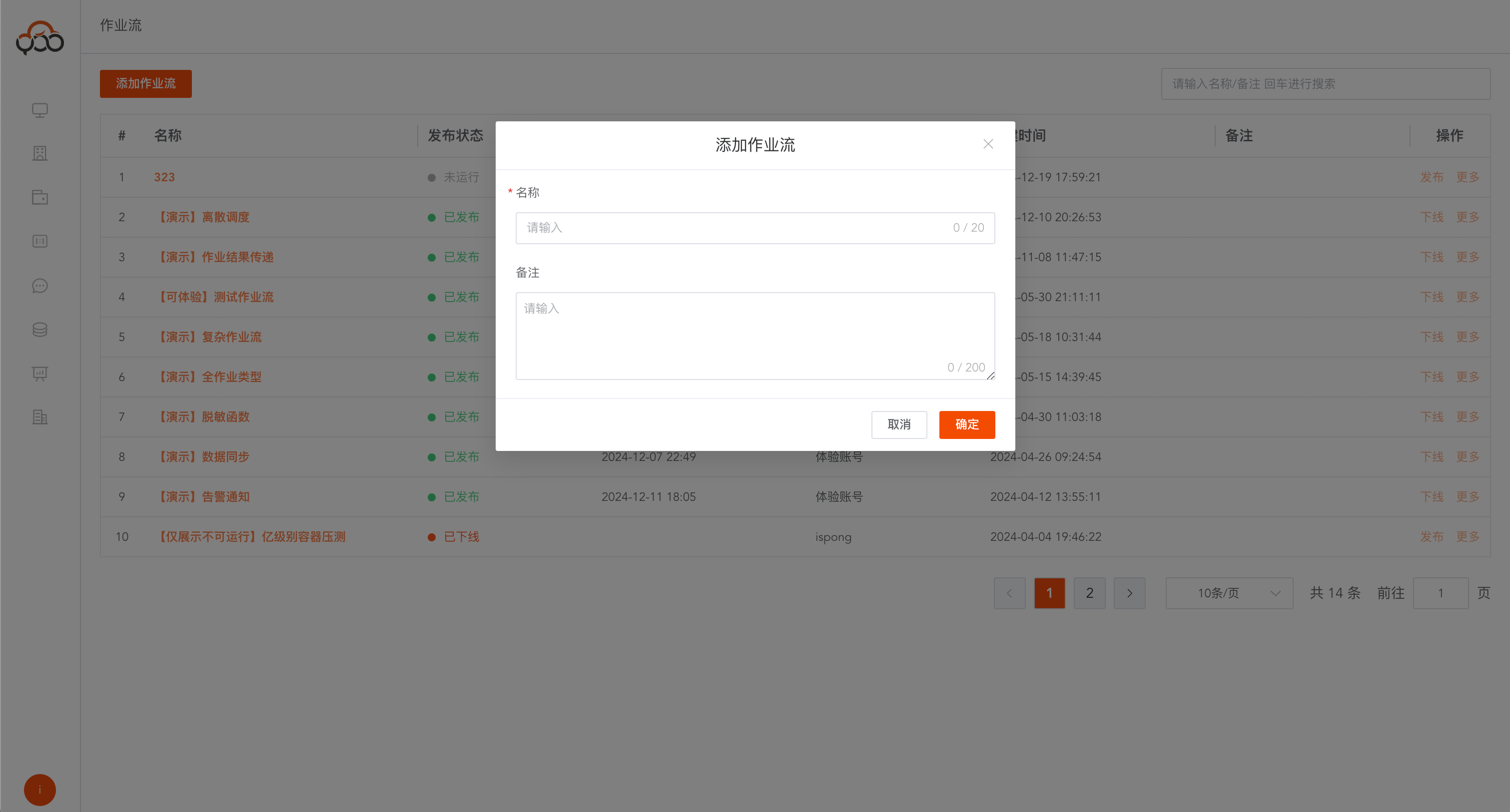
- Name: Required, the name of the job flow, the name is unique within the tenant
- Remarks: Optional
Query job list
Click
job flow nameto enter the editing page of the job flow
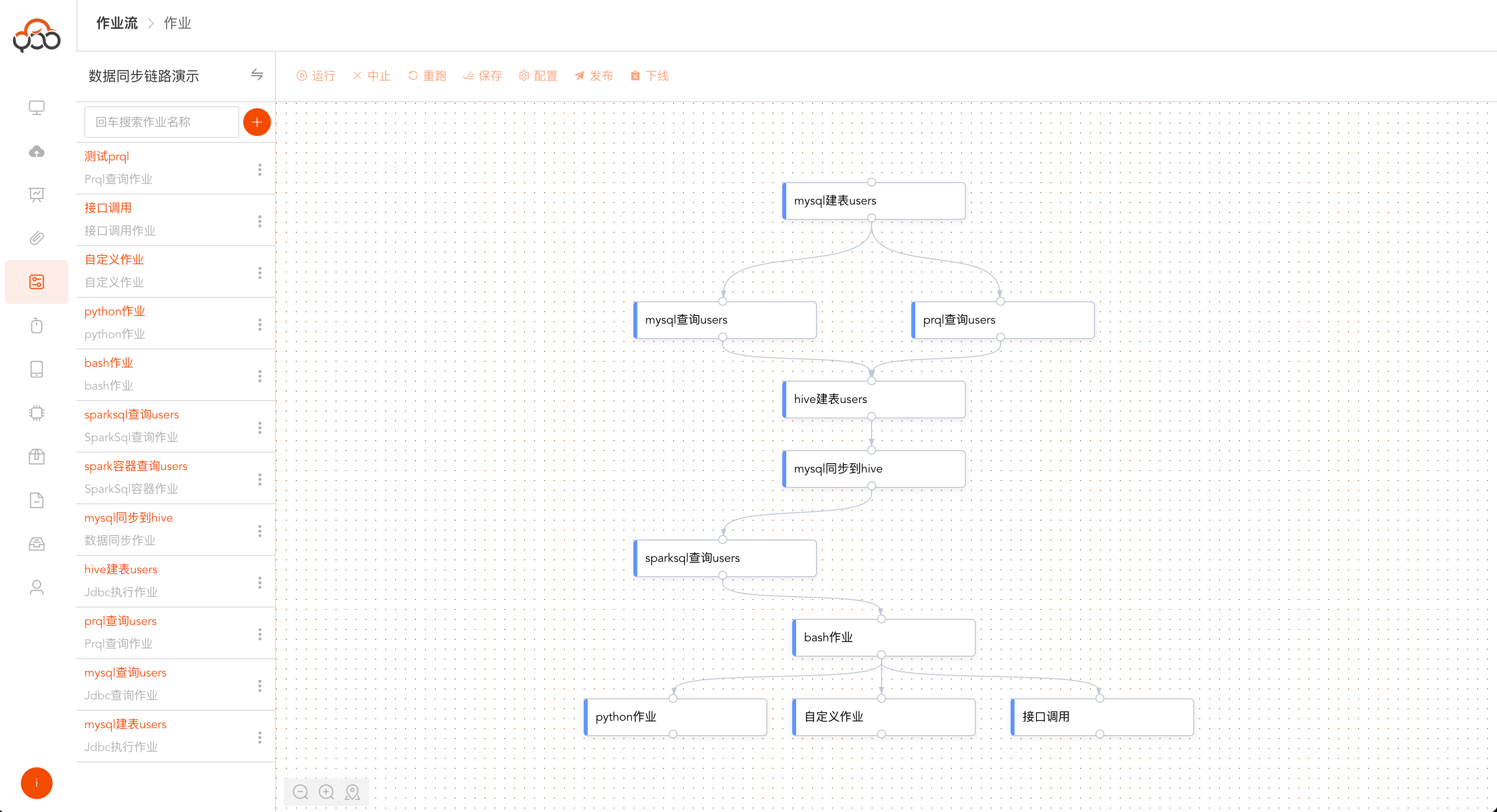
The toolbar supports
Run,Abort,Rerun,Save,Configure,Publish,Offline,Drag and Dropoperations.
- Run: Run the job in the job flow canvas and run it according to the drag and drop logic.
- Abort: Abort the running job flow
- Rerun: Rerun the jobs in the job flow
- Save: Save the job and canvas configuration in the job stream
- Configuration: Configurable job flow’s
scheduling,baseline alarm, andexternal call - Publish: Publish operation, which can realize scheduled scheduling of job flow and refresh the next execution time at the same time.
- Offline: Stop the job flow being scheduled.
- Drag and drop: You can freely drag the jobs in the list on the left to the canvas on the right.
Quick switching of job flows
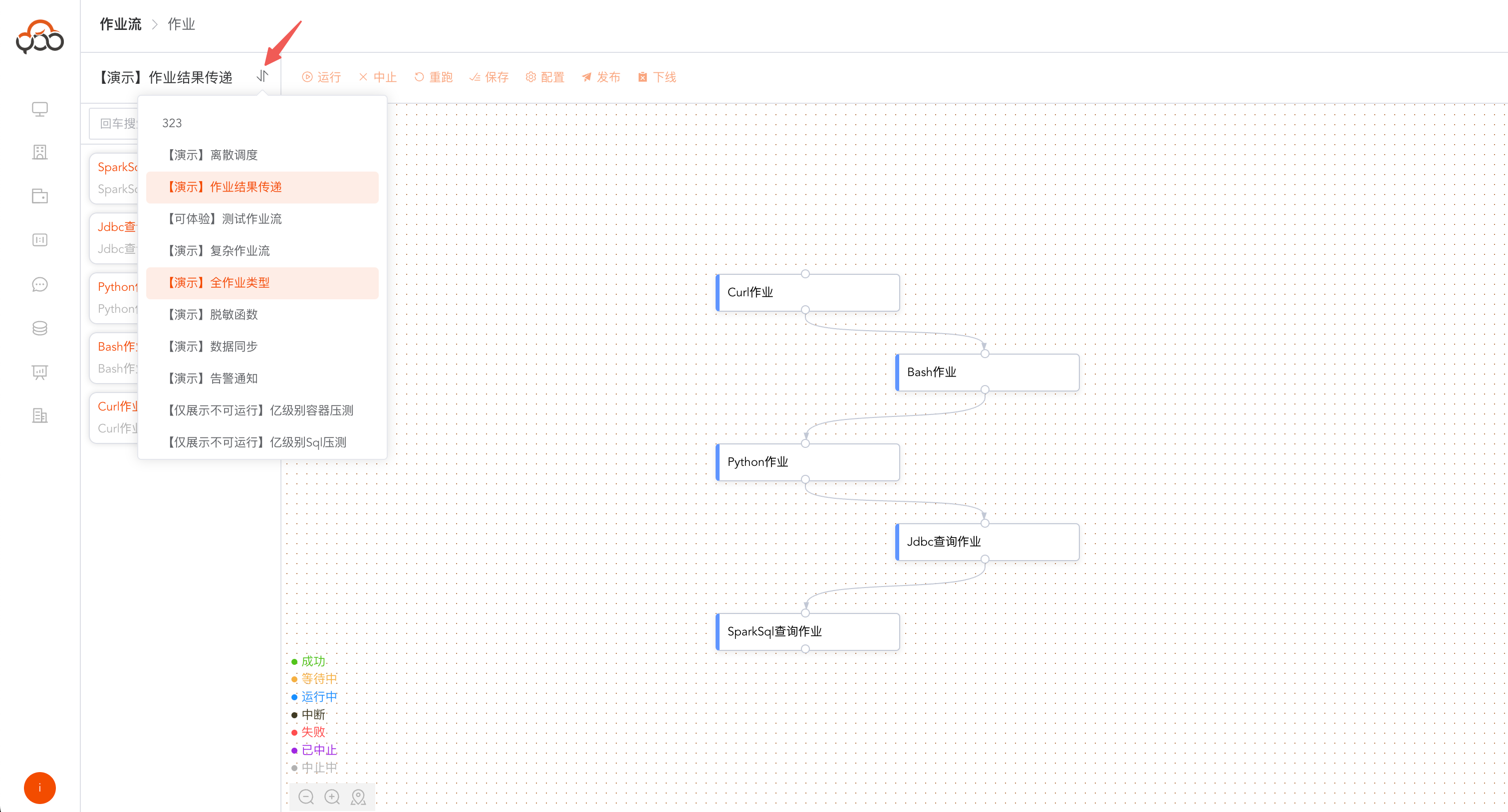
You can quickly switch the development workflow through the switch button on the right side of the job flow name.
Configure job flow
Click the
Configurebutton in the toolbar to configure the job flow
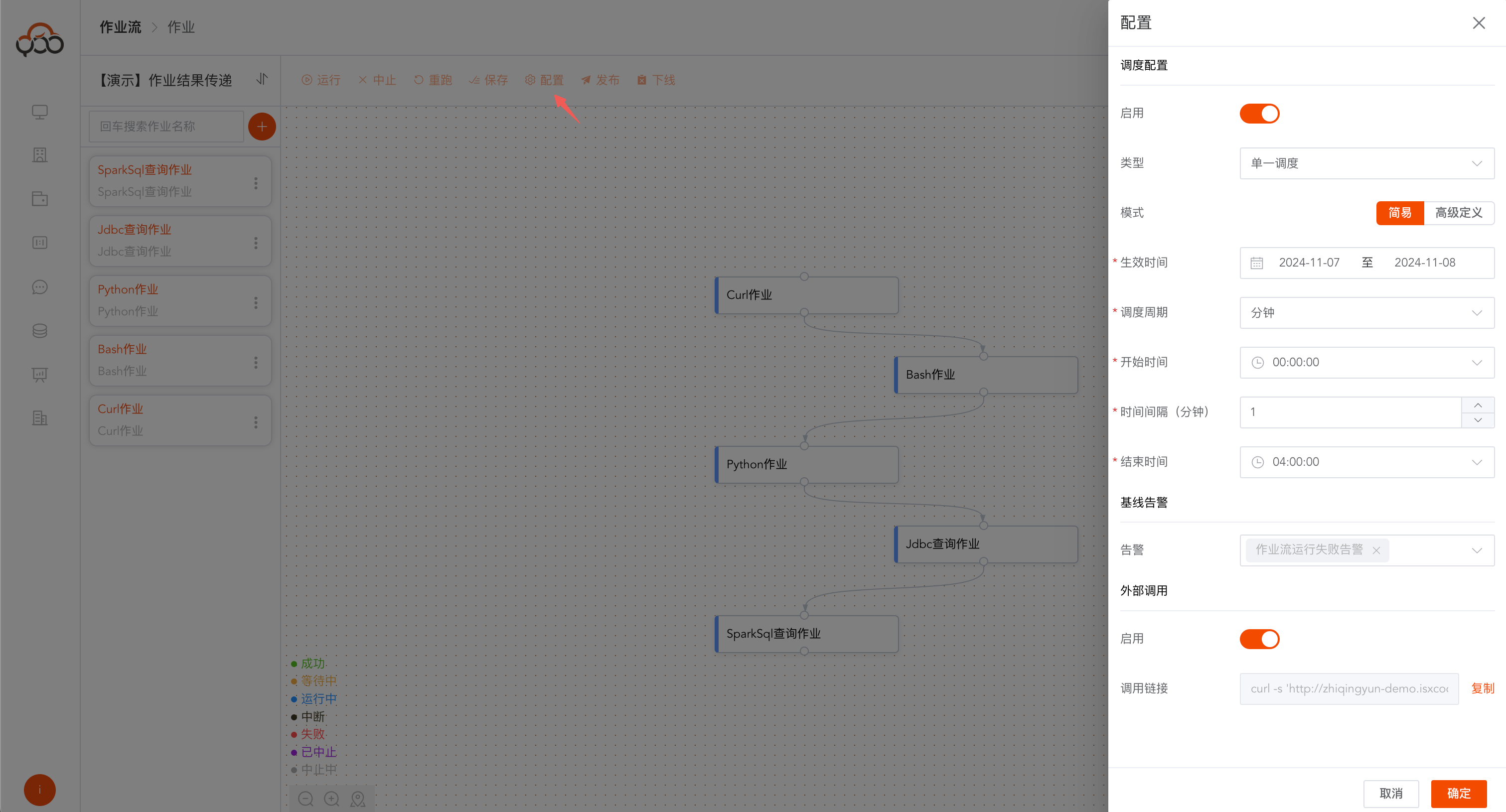
Configuration item description
Scheduling configuration
Configure the scheduling time of the job flow Supports two modes: single scheduling and discrete scheduling
- Single Scheduling: Only the scheduling time of the job flow needs to be configured. The scheduling time of the job is subject to the time configured in the job flow.
- Discrete Scheduling: Separate scheduling configuration is required for job flows and jobs. The running of jobs is subject to the respective configured scheduling time.
Note: In discrete scheduling mode, it is recommended that the scheduling time of the job flow is less than the configuration time of the job. Run the job flow first, and then run the sub-jobs. Note: After modifying the scheduling time, you must go offline first and then publish it to make the scheduling configuration take effect.
- Advanced definition: Support users to manually fill in cron expressions to configure scheduling time, reference address: https://cron.qqe2.com/
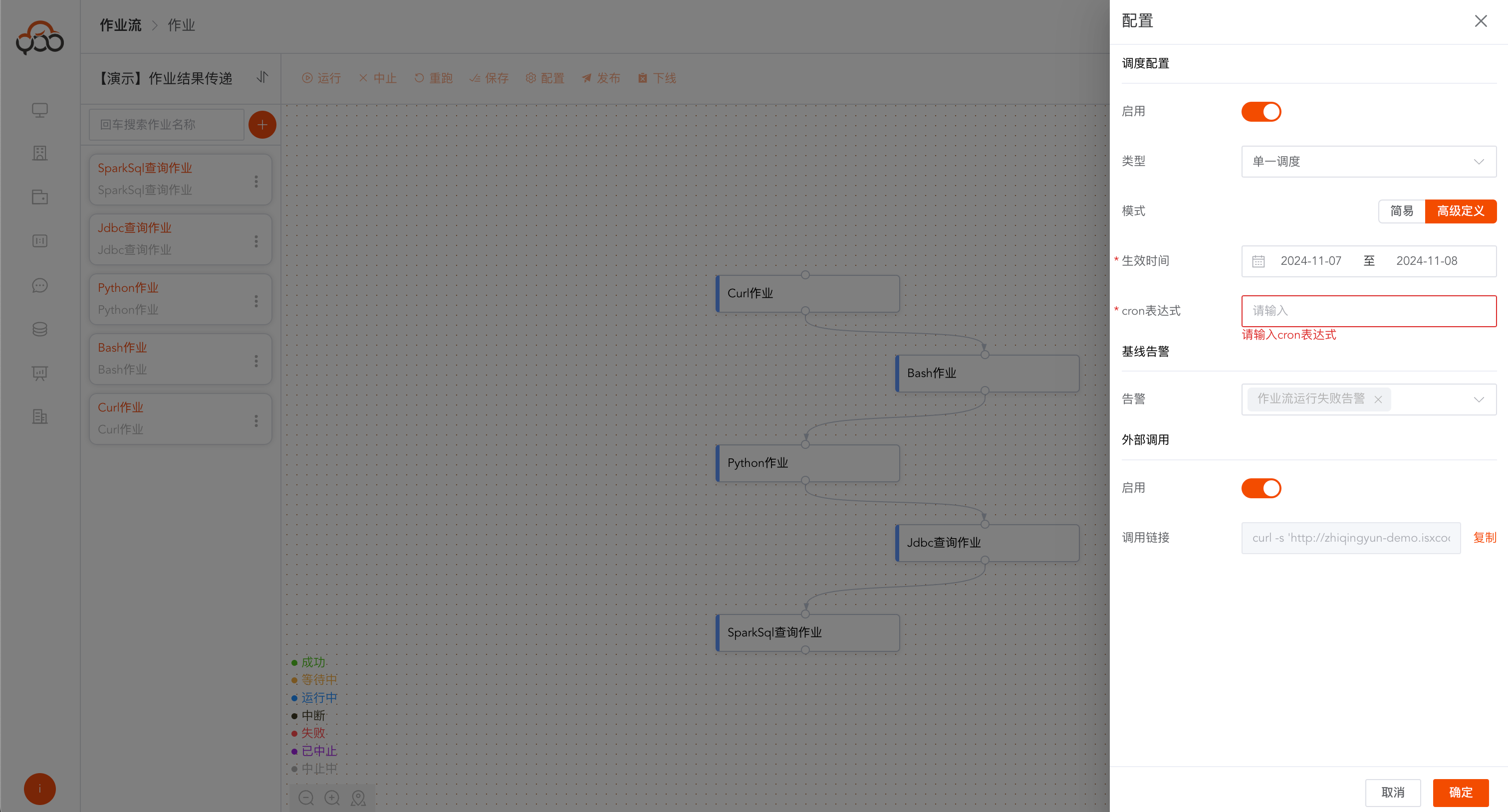
Baseline alarm
Notify events during job flow scheduling Supported events include: job flow starts running, job flow ends running, job flow runs abnormally, and job flow runs successfully
external call
Support job flow to be triggered by third parties through interfaces, similar to the following curl call content Note: The job flow needs to be republished for external calls to take effect. The current validity period of the token is
1 year
curl -s 'http://zhiqingyun-demo.isxcode.com/workflow/open/invokeWorkflow' \
   -H 'Content-Type: application/json;charset=UTF-8' \
   -H 'Accept: application/json, text/plain, */*' \
   --data '{"workflowId":"sy_1854732390999683072","token":"eyJhbGciOiJIUzI1NiJ9.eyJDTEFJTSI6IjFyWUxkVitHTlo0cGZINVNReURqQXI3b2QyM3A3TTNOUmpjVmcwZ3RJSXVtMmhYaElESGdjbEpGQ2hJOHJyOTg1Tnl6bk90OVgwWnFsWGY5MUp5ZUJucHE0VXd6NDEvTDNENlZlYW5aRitOdGxidkZMRUdNL0Q3N1prdHZ3dVdCV2twd0pMWS8rQXFzNS9YbU5rakNIMlRObmN6VmY0VG5jc3MrUWtlekk5WmtuRTlpUEthZGRPTDEyY0haTFVEOSIsImlhdCI6MTczNDY3ODE2NSwianRpIjoiNjRiY2QwNWMtNzFiNi00YjIwLWJjMTctOWNmNzRjMzE5NzAyIiwiZXhwIjoxNzY2MjE0MTY1fQ.VFw_L-sNOgg6_OkMR2dFbAkGUZ7-IEmalAB5MM-HXAI"}'
System parameters
Usage: ${parameter} If the parameters do not meet the requirements, you are welcome to raise an issue.
| parameter | type | illustrate |
|---|---|---|
| ${qing.current_date} | String | yyyy-MM-dd 2024-12-12 |
| ${qing.current_year} | String | yyyy 2024 |
| ${qing.current_month} | String | MM 12 |
| ${qing.current_date1} | String | yyyyMMdd 20241212 |
Case
select '${qing.current_date}'
System function
Usage: #[[function]] Supports mixed use with system parameters The function does not meet the requirements, please raise an issue.
| function name | Return parameters | illustrate |
|---|---|---|
| now() | Date | current time |
| add_day(Date date, int days) | Date | Current time plus or minus days |
| add_month(Date date, int months) | Date | Current time plus or minus months |
| date_to_str(Date date, String format) | String | Convert time to string |
Case
select '#[[ date_to_str(add_day(now(),1),'YYYY-MM-dd hh:mm:ss') ]]'